> ## Documentation Index
> Fetch the complete documentation index at: https://docs.tierzerocode.com/llms.txt
> Use this file to discover all available pages before exploring further.
# Microsoft Intune
> Configure Microsoft Intune Device Integration
The following steps will integrate Microsoft Intune by using an Enterprise Application / Application Registration with the below API permissions. Currently setup is limited to using a Service Principal Name (SPN) with a client id, client secret, tenant id, and domain.
## Required Permissions
| API | Permissions Name | Type | Description | Admin Consent Required |
| --------------- | :-------------------------------------- | :---------- | :---------------------------- | :--------------------- |
| Microsoft Graph | DeviceManagementManagedDevices.Read.All | Application | Read Microsoft Intune devices | Yes |
## Setting Up Microsoft Intune Device Integration
In Tier Zero Code, go to “Integrations” and click on the Microsoft Intune device integration then enable and configure integration.
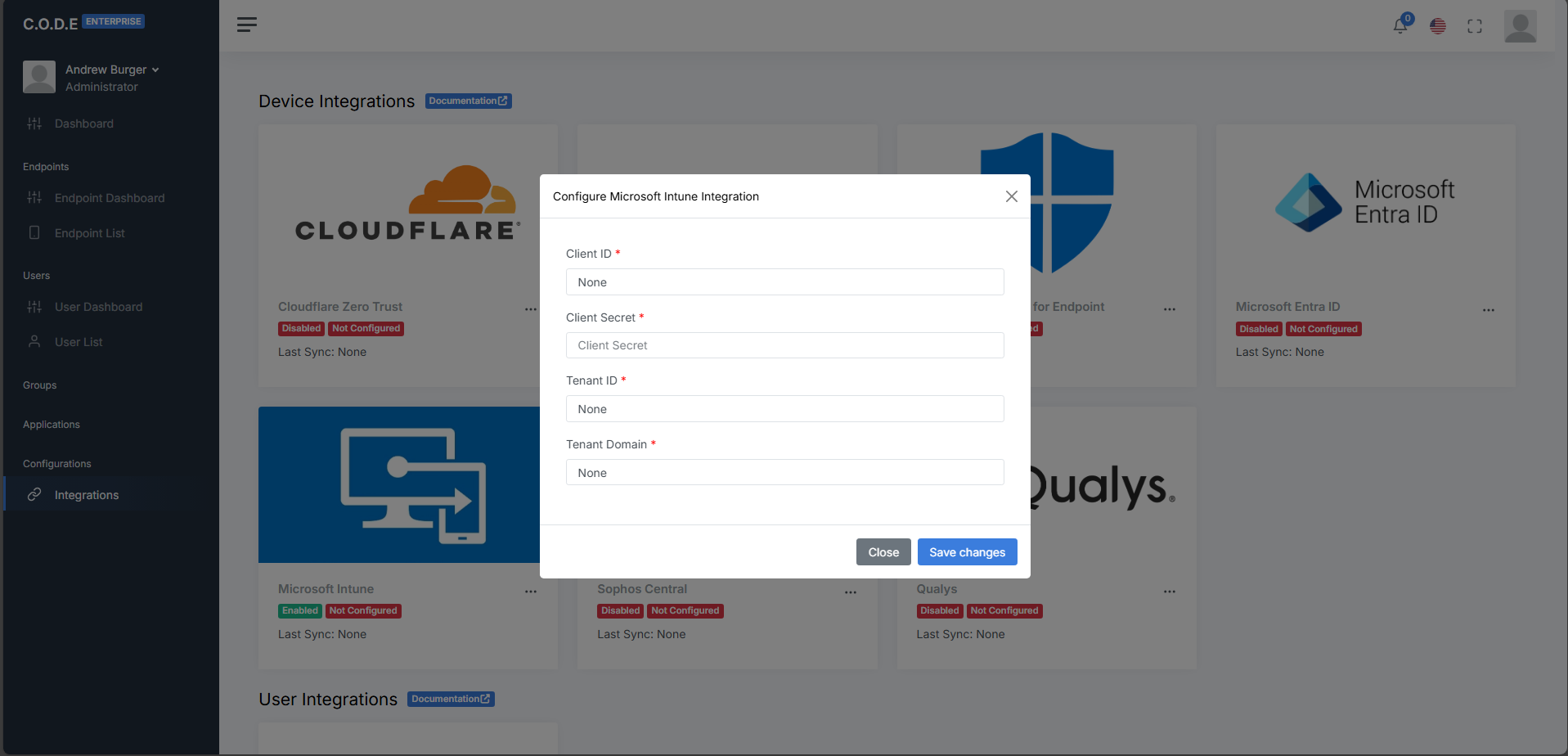 In the Microsoft Intune Configuration, you'll need the following fields:
The application (client) ID from the “Overview” section of your app registration
The client secret value from the “Certificates and secrets” section of your app registration
The directory (tenant) ID from the “Overview” section of your app registration
The primary domain from the "Home" of your Microsoft Entra admin center.
In the Microsoft Intune Configuration, you'll need the following fields:
The application (client) ID from the “Overview” section of your app registration
The client secret value from the “Certificates and secrets” section of your app registration
The directory (tenant) ID from the “Overview” section of your app registration
The primary domain from the "Home" of your Microsoft Entra admin center.